How to Add Schema Markup (Structured Data) in WordPress
Learn how to add schema markup and structured data in WordPress using plugins, manual JSON-LD, and theme methods, with validation and maintenance best practices.
What Is Schema Markup (Structured Data) and Why It Matters for WordPress SEO
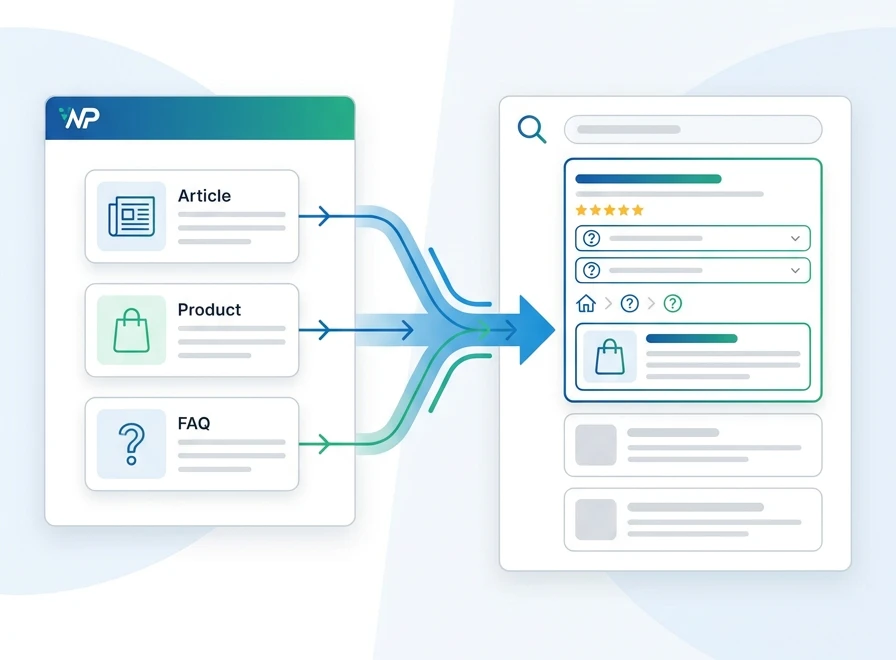
Schema markup, also called structured data, is extra code you add to your WordPress pages and posts that tells search engines exactly what your content is about in a standardized way. Instead of just seeing a block of text, search engines get clear labels like “this is a product,” “this is a recipe,” or “this is a local business.”
Think of schema as a detailed label or cheat sheet for your content. If your page is a box on a shelf, schema is the printed label that says what’s inside, who made it, the price, the rating, and more. With that label, search engines don’t have to guess; they can confidently understand the meaning and context, not just scan for keywords.
When search engines understand your content better, they can turn your normal blue-link result into a rich result. Rich results are enhanced listings that can show things like star ratings, review counts, product prices and availability, recipe cook times, and breadcrumb paths. These stand out visually in search results and usually take up more space on the page.
That extra visibility often leads to higher click-through rates, even if your ranking position doesn’t change. Users are more likely to click a result that already shows useful details right in Google.
For example, a product page without schema might show only a title, URL, and short description. The same page with product schema can show the title plus star rating, number of reviews, price, and “In stock” directly in the search snippet. The content on your site is the same, but the way it appears in search is richer, clearer, and more compelling to potential visitors.
One thing worth knowing before you start: WordPress core outputs no structured data on its own. We verified this on a clean WordPress 7.0.2 install, finding zero JSON-LD and zero microdata. Whatever schema your site has, a plugin or your theme put it there.
Quick Answer: How to Add Schema in WordPress
If you want the short version, adding structured data in WordPress usually follows a simple process:
-
Install a schema plugin or SEO plugin with schema support
Go to Plugins -> Add New in WordPress and install a structured data plugin or an SEO plugin that includes schema features. Many plugins automatically generate common schema types such as Article, Organization, and Breadcrumbs.
-
Choose the schema type
Select the type that best matches your page content. Common options include Article, Product, LocalBusiness, Organization, and BreadcrumbList. The schema type tells search engines what the page represents.
-
Map schema fields to WordPress fields
Most plugins allow you to connect schema properties to existing WordPress data. For example:
headline-> post titleimage-> featured imageauthor-> WordPress authordescription-> post excerpt
This allows the plugin to automatically generate valid JSON-LD for each page.
-
Apply it to posts or pages
Set the display conditions so the schema appears where it should. For example:
- Article schema on all blog posts
- Product schema on product pages
- LocalBusiness schema on your contact or location page
-
Test using Google’s Rich Results Test
Once the schema is active, run the page URL through Google’s Rich Results Test. This confirms the schema is detected and highlights any errors or warnings that need fixing.
For most WordPress sites, this plugin-based workflow is the fastest and safest way to add structured data without editing code.
How Schema Markup Works in WordPress (JSON-LD vs Microdata, Themes, and Plugins)
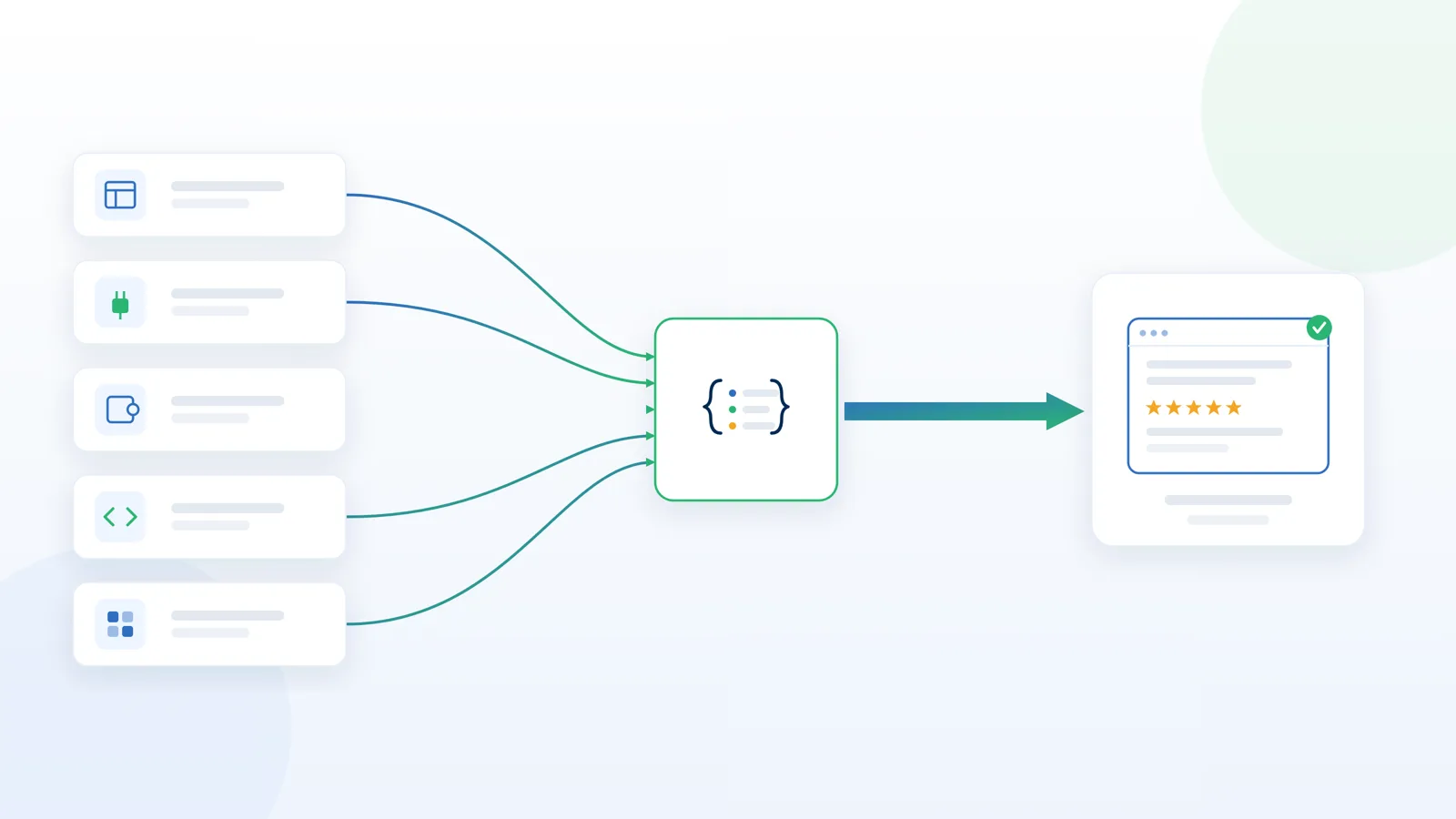
Schema markup is just structured data attached to your pages so search engines can understand them better. In WordPress, it’s generated from three main places: your theme, your plugins, and your content blocks/custom HTML, then output as code in the page source.
There are two main formats you’ll see:
- JSON-LD - a separate block of JavaScript-style data, usually in the
<head>or at the end of<body>. - Microdata - attributes embedded directly into the HTML tags of your content.
A minimal JSON-LD block looks like this:
<script type="application/ld+json">
{
  "@context": "https://schema.org",
  "@type": "Article",
  "headline": "Example Post"
}
</script>
This static example is fine as a starting point, but as soon as you pull dynamic data into the markup you should build a PHP array and encode it rather than writing JSON by hand, as covered in the escaping section below.
Because JSON-LD is separate from your visible HTML, it’s easier to maintain, doesn’t clutter templates, and is less likely to break when you change themes or page layouts. That’s why search engines and most modern tools recommend JSON-LD over microdata.
| Aspect | JSON-LD | Microdata |
|---|---|---|
| Format | Separate <script> block | Inline attributes on HTML elements |
| Placement | Typically in <head> or end of <body> | Mixed into content markup |
| Pros | Clean, flexible, easy to edit or replace | Tied closely to visible elements |
| Cons | Not visible in-page without source view | Hard to maintain; breaks with HTML changes |
Under the hood in WordPress, schema can come from three places:
- Themes - template files like
single.phporheader.phpcan output JSON-LD, or add microdata attributes to titles, authors and breadcrumbs. Many modern themes ship with basic Article or BreadcrumbList schema enabled by default. - Plugins - SEO and schema plugins inject JSON-LD automatically based on post type, settings and custom fields.
- Blocks / Custom HTML - you can paste JSON-LD into a Custom HTML block or a code injection area for page-specific markup.
All three feed the same output: rendered HTML plus JSON-LD script(s), which search engines read from the page source. Knowing which of the three is producing a given node is the whole game when you're debugging duplicates.
Common Schema Types You Should Use on a WordPress Site
For most WordPress sites, a small set of schema types delivers the biggest impact. These help search engines understand your content and can unlock rich results like stars and breadcrumbs.
| Schema Type | Typical WordPress Use | SERP Feature / Benefit | Status in 2026 |
|---|---|---|---|
| Article / BlogPosting | Blog posts, news, guides | Enhanced article rich results | High |
| Product | Product pages, service packages, downloads | Product rich results (price, stock) | High for e-com |
| LocalBusiness | Local service or brick-and-mortar pages | Local pack, knowledge panel detail | High for local |
| Organization | Site-wide business identity (About, footer) | Knowledge panel, logo, social links | High |
| BreadcrumbList | Site navigation trails | Breadcrumbs in search results | High |
| Review / Rating | Reviews, testimonials, product ratings | Star ratings in results | Medium-High |
| Person | Author identity on posts and about pages | Supports author and entity signals | Medium |
| FAQ sections, support pages, post-end FAQs | No longer produces a rich result | Deprecated May 2026 | |
| Step-by-step tutorials | No longer produces a rich result | Deprecated Aug 2023 |
The two struck-through types are still generated by most WordPress schema plugins, and several still ship editor blocks for them. Here's which ones, and what to do about it.
Article / BlogPosting Use this on blog posts, news articles, and in-depth guides. It tells search engines the headline, author, date and main topic, and it's the highest-priority type for any content-driven WordPress site.
Product Use Product schema on product pages, service packages, or downloadable items. It can include price, availability, and descriptions. For any store or site selling things, this is high-priority because it supports product rich results. Worth remembering that the markup only wins the click, and what happens after it is a separate problem: on a WooCommerce auto parts retailer, traffic was growing while revenue stayed flat, and the fix was restructuring what the product page showed above the fold rather than anything in the structured data.
LocalBusiness / Organization Organization defines your site-wide entity: name, logo, contact details and social profiles. LocalBusiness is the more specific type for physical or service-area businesses, adding address, opening hours and phone. For local businesses both are high-priority, since they reinforce your presence in local results and knowledge panels.
BreadcrumbList BreadcrumbList schema mirrors your on-page breadcrumb navigation. It’s high-priority for most sites because it helps search engines display clean breadcrumb paths instead of long URLs. It’s also one of the few types that still visibly changes what appears in the SERP.
Review / Rating Highlights user ratings or editorial reviews, and can trigger star ratings in search results. Medium to high priority wherever genuine reviews exist.
Person Person schema identifies the author of a post and, with sameAs links to profiles elsewhere, helps search engines connect that author to a recognised entity. It’s an inexpensive addition that most WordPress sites skip.
A note on FAQPage Until May 2026 this was one of the highest-value types here, producing expandable questions directly in search results. Google removed that feature on 7 May 2026. Existing markup can stay, but adding it to a new page won’t produce anything visible, and it shouldn’t be a priority in a 2026 plan.
Most sites combine several: a blog might use Article, BreadcrumbList and Person, while a local business uses Organization site-wide, LocalBusiness on its contact page and BreadcrumbList throughout.
Method 1: Add Schema in WordPress Using a Plugin
A plugin is the right choice for most sites: if you’re not comfortable editing code, if you manage a lot of posts or products, or if your content and schema types change regularly. A plugin automates the markup, stays current with schema changes, and reduces the risk of errors compared with hand-coding.
Two approaches exist. Dedicated schema plugins focus only on structured data, usually with more types and more granular control. SEO plugins with schema support combine SEO features with built-in schema for common content types. If you only need standard types (Article, Product, LocalBusiness, Organization), an SEO plugin is usually enough. If you need many custom post types or niche types, a dedicated schema plugin is the better fit.
Whichever you choose, the setup pattern is the same:
-
Install and activate the plugin
Go to Plugins → Add New, install it, and activate. A new menu item such as “Schema” or “Structured Data” appears in the sidebar.
-
Complete the setup wizard
Don’t skip this. Several popular plugins output no structured data at all until the wizard is marked complete, with nothing in the interface warning you.
-
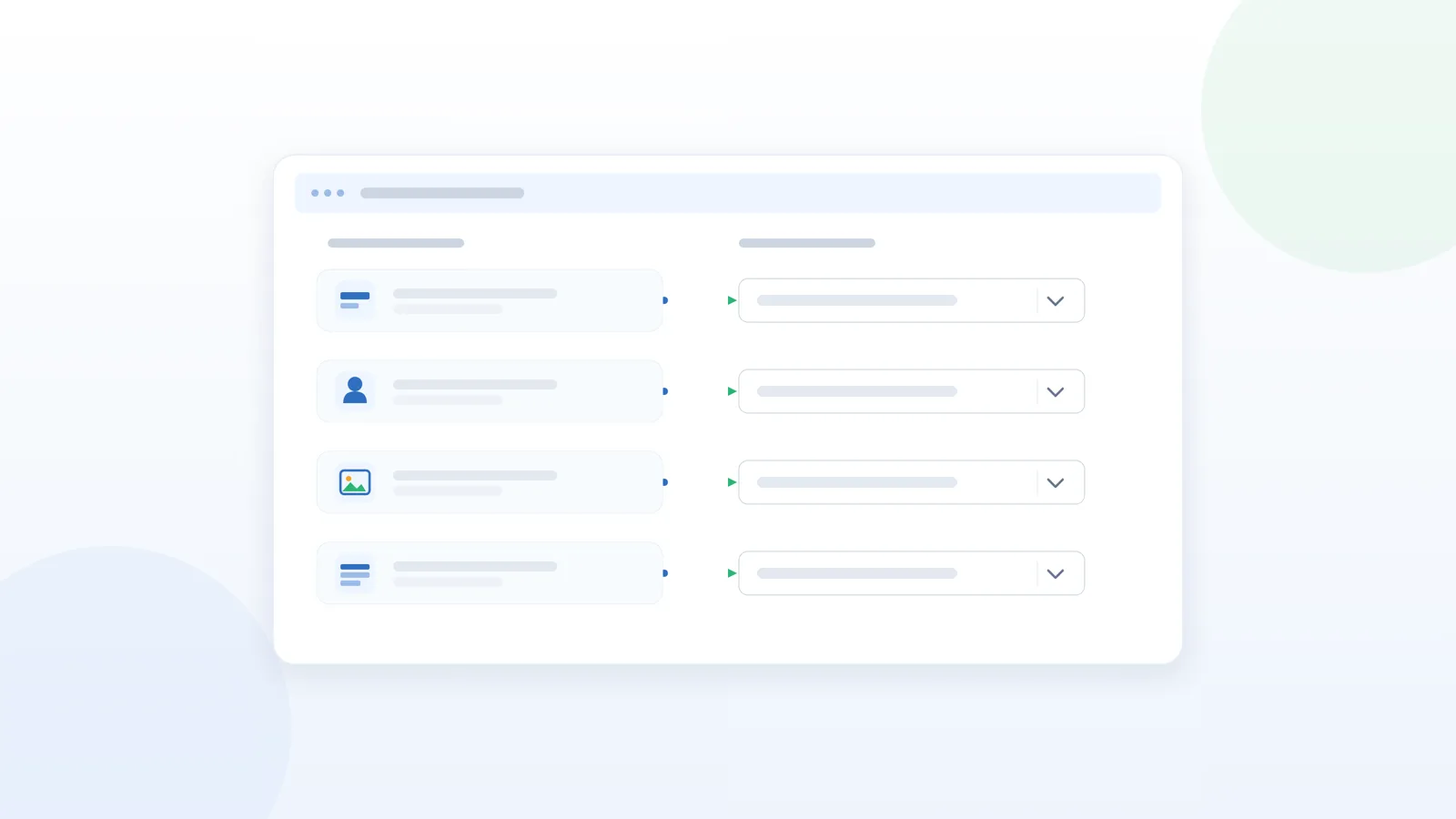
Map schema fields to post fields
Connect each schema property to where the data lives in WordPress: headline to the post title, image to the featured image, description to the excerpt, author to the WordPress author. For fields with no WordPress equivalent, use a fixed value or a custom field.
-
Set display conditions
Decide where the template applies: all posts, all pages, specific custom post types, or only certain categories and tags.
-
Save and test
Open a page that should now carry the schema and run the URL through a rich results testing tool to confirm the type is present and required fields are filled.
Which plugin should you actually use? We installed seven of them on identical clean WordPress installs and captured the exact JSON-LD each one produces. Two of the most widely recommended output nothing at all until you complete a setup step nobody mentions, one writes a literal null into the author field of every post, and one deletes WooCommerce’s product schema entirely. The full results, with a decision table by site type, are in WordPress schema plugins compared.
Method 2: Add Schema Markup Manually in WordPress (Without a Plugin)
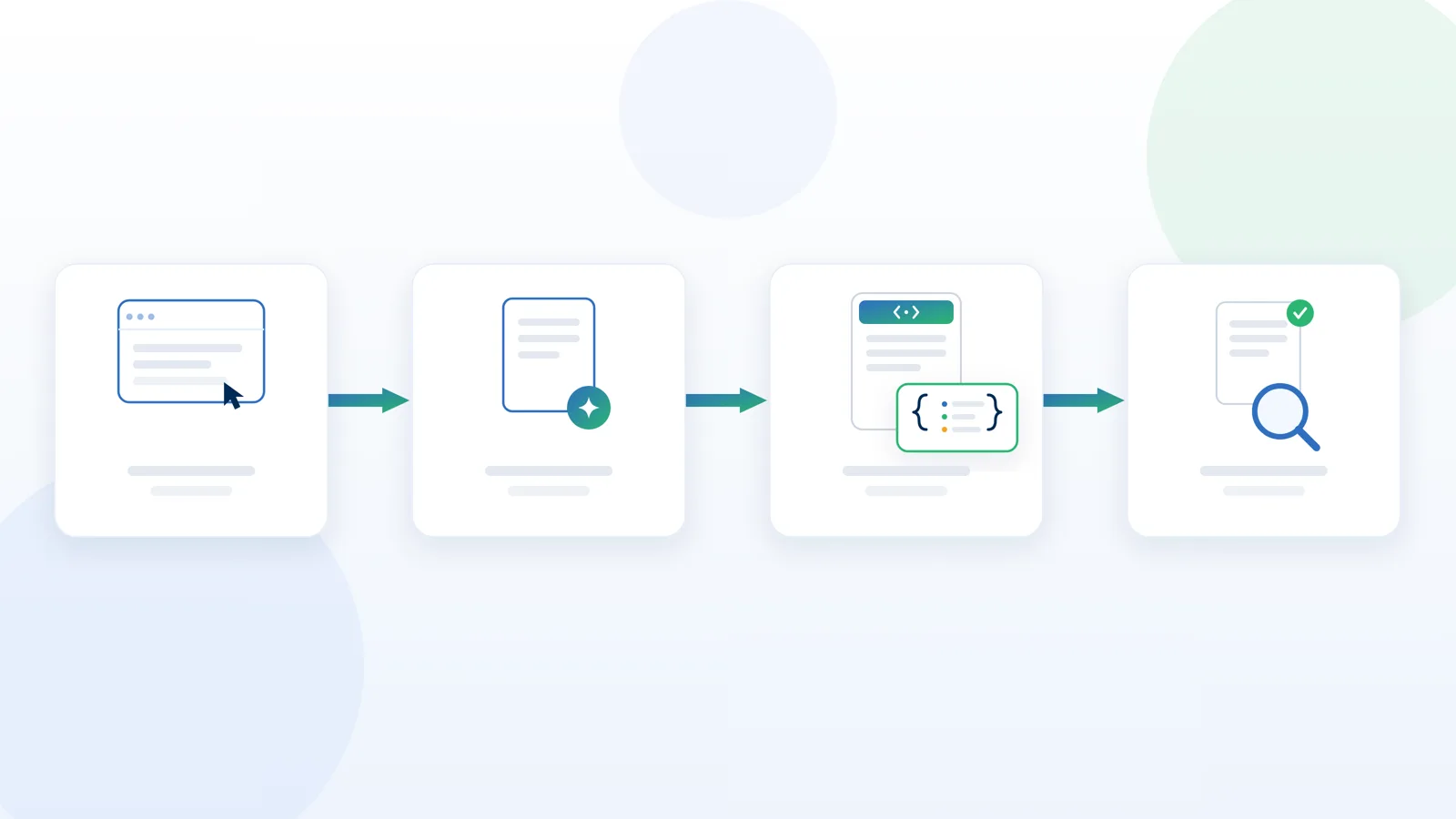
If you want exact control over the graph, or you’re already carrying enough plugins, you can write the JSON-LD yourself. The mechanism is a function hooked to wp_head that prints a <script type="application/ld+json"> block into the <head>:
Browser request → WordPress loads theme → snippet runs → wp_head hook → JSON-LD printed into <head> → schema appears in page source
functions.php, a must-use plugin in wp-content/mu-plugins/, or a code snippets plugin. Editing the parent theme means the next update silently deletes your structured data. A must-use plugin is the safest option: it loads automatically, can’t be deactivated by accident, and survives a theme switch.
The one rule that catches everyone: never interpolate PHP variables into a hand-written JSON string. Build a PHP array and encode it, so a post title containing an apostrophe can’t break the block:
$data = array(
    '@context' => 'https://schema.org',
    '@type'    => 'Article',
    'headline' => wp_strip_all_tags( get_the_title() ),
    'mainEntityOfPage' => array(
        '@type' => 'WebPage',
        '@id'   => get_permalink(),
    ),
);

?>
<script type="application/ld+json">
<?php echo wp_json_encode( $data, JSON_UNESCAPED_SLASHES | JSON_UNESCAPED_UNICODE ); ?>
</script>
<?php
Hand-assembled JSON fails silently: no error, no warning, just no structured data. wp_json_encode() removes that whole class of bug.
The complete implementation, including WordPress conditionals so each type only appears where it belongs, a full linked @graph with Article, Organization, Person and BreadcrumbList, proper @id references, and a working must-use plugin you can drop into a site, is in how to add schema code in WordPress without a plugin. For reference, that hand-written graph carries every property Google requires for Article in about a quarter of the markup a full SEO plugin generates on the same page.
Once it’s live, view your page source to confirm the JSON-LD appears, then validate the URL as described in the testing section below.
Method 3: Add Schema via Your WordPress Theme or Page Builder
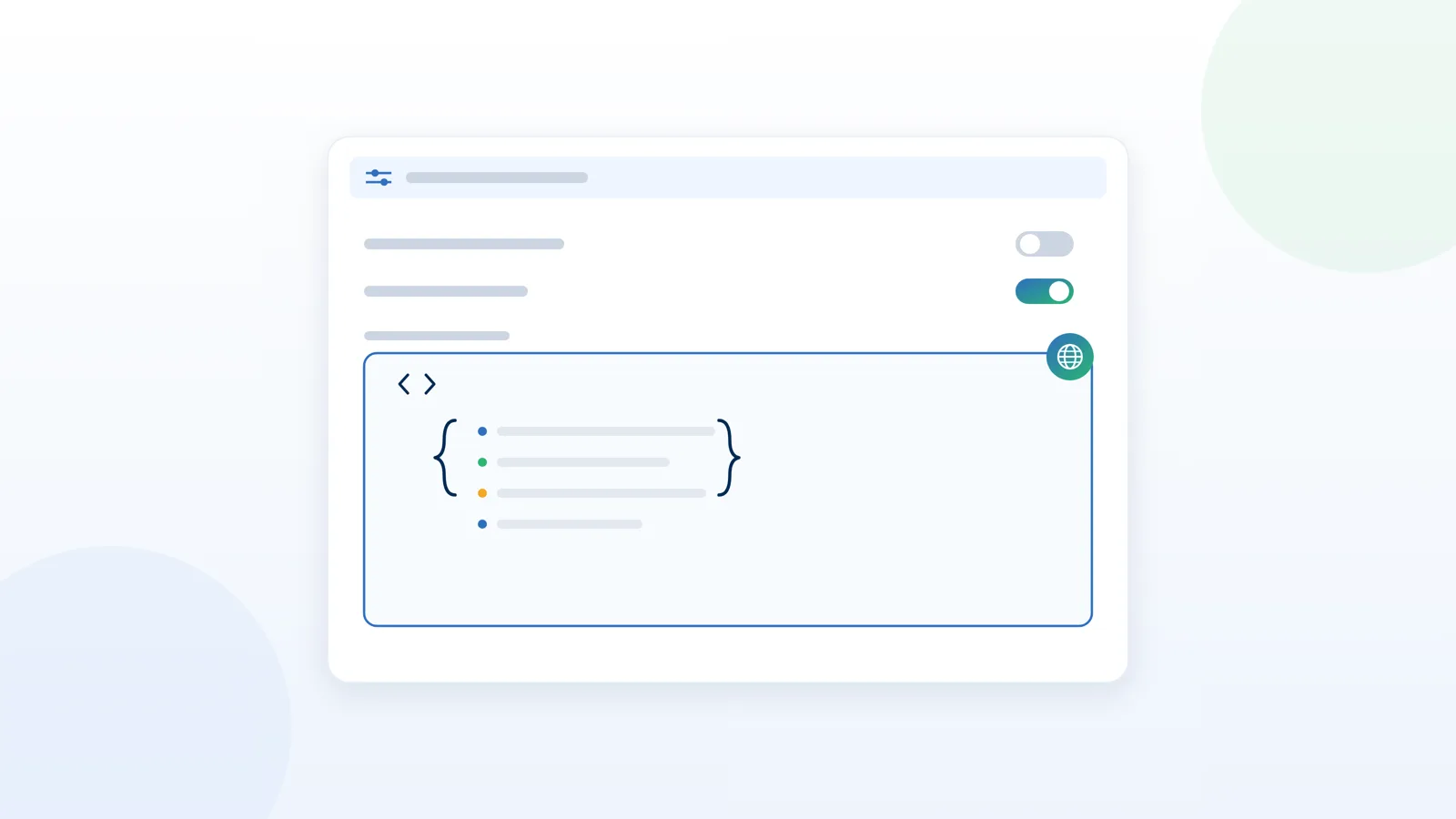
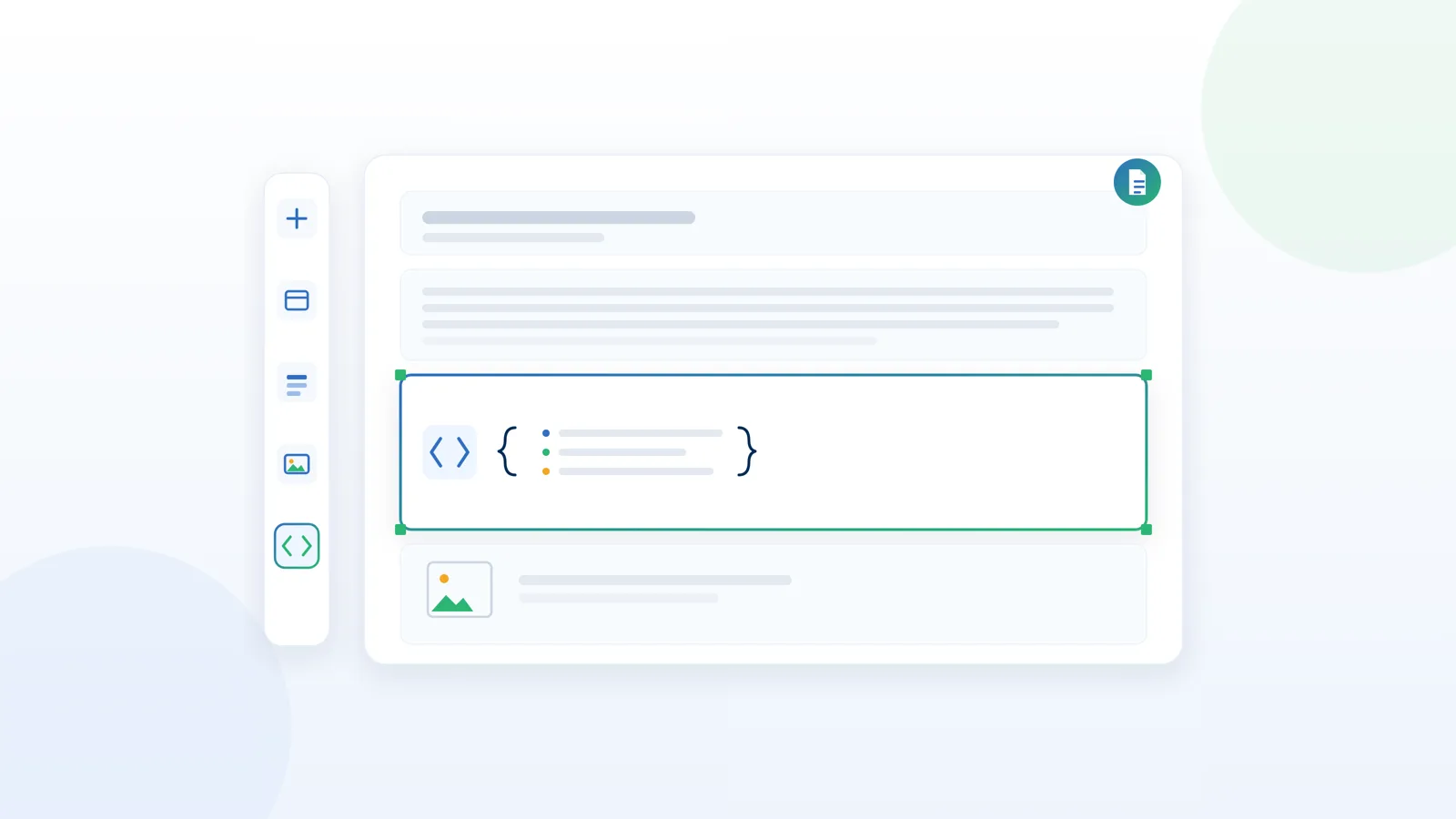
Many modern themes and page builders output schema without extra plugins, generating JSON-LD or microdata behind the scenes for articles, breadcrumbs and site navigation based on your post title, author, date and menu structure.
Most quality themes also include an options panel where you can paste custom scripts into the <head> or footer of every page. These fields are often labeled “Header Scripts,” “Head Code,” or “Custom Scripts.” Anything you paste there is loaded site-wide, which makes it a convenient place to add global JSON-LD.
To add LocalBusiness schema site-wide, open your theme options or Customizer, find the “Header Scripts” field, paste the JSON-LD, then save and clear any caches. That looks like this:
<script type="application/ld+json">
{
  "@context": "https://schema.org",
  "@type": "LocalBusiness",
  "name": "Example Store",
  "address": {
    "@type": "PostalAddress",
    "streetAddress": "123 Main St",
    "addressLocality": "Sampletown"
  },
  "telephone": "+1-555-123-4567"
}
</script>
Page builders and the block editor also let you add schema per page: insert a Custom HTML or Code block and paste the JSON-LD into it, which is useful for page-specific types like Event or Product.
<script type="application/ld+json">
{ "...": "your JSON-LD here" }
</script>
Using themes and builders for schema has limitations. If you change themes, any schema added through that theme’s options may be lost or behave differently, making it harder to reuse your setup. There’s also a real risk of duplication: if your theme outputs Article or Breadcrumb schema and you add similar types via a plugin or manual JSON-LD, search engines may see overlapping or conflicting data. To use this method safely, audit what your theme or builder already outputs, then avoid adding the same schema types again elsewhere.
Schema for WooCommerce Stores
If you’re running WooCommerce, start by checking what you already have rather than reaching for a plugin.
WooCommerce emits its own Product structured data with no plugin and no configuration. On a default install it produces a valid Product node with name, image, SKU, description, price, currency and availability, plus a BreadcrumbList, and it adds AggregateRating and Review automatically once a product has approved reviews. That covers all four of Google’s required merchant listing properties out of the box.
What it leaves out is the commercially useful part: brand, gtin, itemCondition, shippingDetails and hasMerchantReturnPolicy. Brand and GTIN are how Google matches your listing to the same product sold elsewhere. Shipping and returns feed annotations that appear directly in shopping results, and they’re among the few structured data properties that visibly change what a shopper sees before they click.
There’s also a structural problem most store owners never find. Variable products emit AggregateOffer rather than Offer, and Google’s merchant listing documentation specifically requires an Offer object. Which means that on a default WooCommerce store, every variable product is ineligible for merchant listing rich results. If your catalogue has sizes or colours, that’s most of it.
Adding a schema plugin on top can make things worse rather than better. In our testing, three of the major SEO plugins left duplicate breadcrumb trails on product pages, and one popular dedicated schema plugin silently removed WooCommerce’s product markup entirely, leaving product pages with no structured data at all and no warning that it had happened.
Full detail, including the code to output per-variation offers and add the missing identifiers, is in our WooCommerce schema markup guide.
Schema Decision Flow: Which Type Should You Use?
Not every page needs the same schema. Use this quick mapping to choose the most relevant schema types by site intent.
| Site Type | Primary Schema Types | Why It Fits |
|---|---|---|
| Blog / Content Site | Article or BlogPosting, BreadcrumbList, Person | Helps search engines understand editorial content structure, author context, and page hierarchy. |
| Local Business Website | LocalBusiness, Organization, BreadcrumbList | Strengthens local entity signals, business identity, and discoverability in local search features. |
| Online Store / Ecommerce | Product, Offer, Review, BreadcrumbList | Supports product-rich features like price, availability, ratings, and cleaner category navigation signals. |
| Support Pages or Guides | Article, BreadcrumbList | Clarifies answer-focused content. Note that FAQPage no longer produces a rich result, and HowTo hasn’t since 2023, so a well-formed Article node does more for a tutorial than HowTo ever did. |
Most websites combine several schema types. For example, a blog might use Article + BreadcrumbList + Person, while a store might combine Product + Review + BreadcrumbList.
How to Test and Validate Your Schema Markup
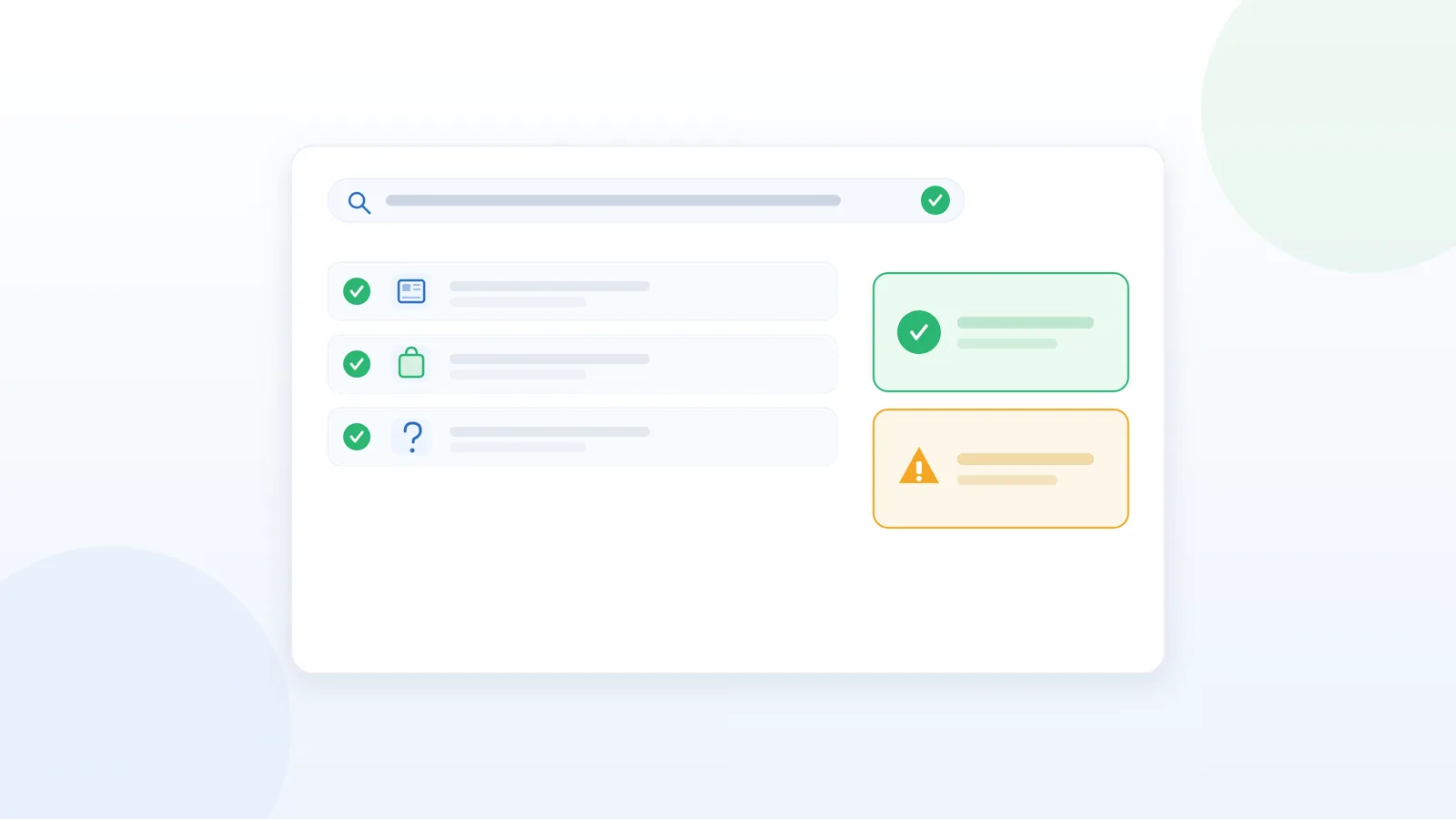
To know whether your schema is working, you need to test the code itself and then monitor how Google sees it over time.
Using Google’s Rich Results Test
Test either a live URL or pasted code. The summary tells you whether the page is eligible for rich results, meaning your schema is valid for at least one type, or not eligible, meaning no supported schema was found or it’s too broken to use.
Below that you get the detected types, errors (required fields missing or invalid, such as “Missing field ‘name’”) and warnings (recommended fields missing, such as “Missing field ‘image’”). Fix errors first, then warnings where you can, and rerun until the page shows as eligible.
One thing that catches people out in 2026: the Rich Results Test no longer reports on FAQ structured data. Google removed FAQ support from the tool in June 2026, following the removal of FAQ rich results in May. If you test a page carrying FAQPage markup and the tool says nothing about it, that’s expected behaviour, not an error in your markup.
Using the Schema Markup Validator (Schema.org)
Paste a URL or a code snippet and run the test. It reports the parsed structured data and any syntax or structure issues, such as “Invalid JSON: Unexpected token” or “Unknown type.”
This tool checks whether your schema follows Schema.org structure and JSON syntax, not whether it qualifies for rich results. Reach for it when you suspect broken JSON or incorrect property names, and whenever the Rich Results Test reports nothing at all, since it will tell you whether the markup is even parsing.
Checking Structured Data in Google Search Console
Open the Enhancements section in Search Console and click the relevant report (Breadcrumbs, Products, Reviews). Each one shows coverage (how many URLs are valid, valid with warnings, or in error), the specific errors blocking rich results, and warnings for incomplete but usable data. Click an error type to see example URLs, fix the underlying issue in WordPress, then use Validate Fix once deployed.
Unlike the two testing tools, these reports cover your whole site rather than one URL, so this is where site-wide problems surface.
If you’re looking for the FAQ report, it’s gone. Google removed the FAQ search appearance filter and rich result report in June 2026, and Search Console API support for it ends in August 2026.
Errors vs. Warnings (and What to Fix)
| Error/Warning | Likely Cause | Fix |
|---|---|---|
| Error: Missing field “name” | Required title/name not set, or two plugins emitting competing nodes where one is incomplete | Ensure post/product title is mapped in your schema; check you don’t have duplicate output |
| Error: Invalid value type for “price” | Text instead of number for price | Use a numeric price field in your product settings |
| Warning: Missing field “image” | No featured image or product image | Add a featured image and let your plugin include it |
| Warning: Missing field “aggregateRating” | No rating data available | Optional; add reviews if you genuinely collect them |
| Nothing detected at all | Something removed the output, or a plugin was never configured | See the troubleshooting section below |
Even with valid schema and no errors, rich results are not guaranteed. Google decides when to show them based on quality, relevance, and other factors, so focus on clean, accurate data and good content.
Best Practices, Maintenance, and Troubleshooting for WordPress Schema
Treat schema as part of your core site structure, not a one-time add-on. The goal is to keep markup accurate, consistent, and aligned with what users see.
Best practices for reliable schema
- Match schema to visible content only. Use types that reflect what’s actually on the page, and don’t add Review or Event schema unless that information is visible to users. Prioritise fields you genuinely display over properties that merely exist in the spec.
- Avoid duplicate schema for the same entity. Pick one source of truth per type and disable the others. Use “View Source” and search for
"@type"to confirm you aren’t repeating the same entity. - Keep organization details consistent. Same business name, logo URL, phone and address everywhere your organization is referenced, centralised in one plugin or settings page. When your NAP changes, update both the visible content and the schema on every affected template.
- Prefer types that describe what a thing is, not how it should be displayed. Article, Product, Organization, LocalBusiness and BreadcrumbList have survived every change Google has made to rich results. FAQPage and HowTo were deployed at scale to trigger specific SERP widgets, and when those widgets were retired the work went with them.
Quarterly maintenance checklist
- Spot check key templates: homepage, blog post, product, main service pages. Confirm the schema still matches what’s on the page.
- Run the Rich Results Test on at least one URL per important template, and check for new warnings or missing required fields.
- Check Search Console enhancements for spikes in errors or drops in valid items.
- Re-test after plugin and theme updates, and read changelogs for structured data changes or new defaults.
- Audit for deprecated types. Google retires rich result formats: FAQ in May 2026, HowTo in 2023. Check you’re not still generating markup for a feature that no longer exists, particularly after an update that may have reintroduced an editor block.
Troubleshooting common WordPress schema issues
Use this table to quickly diagnose and fix frequent problems:
| Problem | Likely Cause | Fix |
|---|---|---|
| No rich results despite valid schema | Not eligible type, low quality, or minimal usage | Improve content, add more relevant properties, give it more time. |
| Conflicting schema from theme + plugin | Both output same type for same entity | Disable schema in either the theme or the plugin, not both. |
| Plugin update changed schema output | New defaults or mapping in latest version | Review settings, re-map fields, and adjust JSON-LD if customized. |
| No structured data at all, despite an active schema plugin | The plugin was never configured, or another plugin removed the output | Several popular plugins emit nothing until a setup step is completed, and at least one strips WooCommerce’s product schema on activation. Deactivate schema plugins one at a time and re-test. |
For the full set of validation errors, what causes each one, and how to clear them, see our schema errors guide.
When Schema Becomes Difficult to Manage
For small sites, a plugin or a few manual snippets is enough. It stops being enough when you have large product catalogues, thousands of indexed pages needing consistent markup, several people publishing, or overlapping plugins and themes each generating their own output. At that point schema stops being a page-level feature and becomes a site-wide infrastructure problem, where the answer is generating structured data from a central logic layer rather than maintaining it in several plugins at once.
What that looks like in practice is covered in schema markup at scale.
FAQ: Schema Markup in WordPress
How do I add schema in WordPress with a plugin?
Install a schema or SEO plugin, activate it, then complete its setup wizard, choosing your site type and enabling the types you need. Don't skip the wizard: several popular plugins output no structured data at all until it's finished. Validate the result with Google's Rich Results Test.
How to add schema in WordPress without a plugin?
Hook a function to wp_head that builds a PHP array and outputs it with wp_json_encode(). Put it in a child theme, a must-use plugin or a code snippets plugin, never the parent theme. Full working code is in our guide to adding schema without a plugin.
What is the best type of schema for a WordPress blog post?
Article or BlogPosting, plus BreadcrumbList and a Person node for the author. If the format is specific, a recipe for instance, use the matching type. HowTo and FAQPage no longer produce rich results, so a tutorial or Q&A post is better served by a well-formed Article node.
Which schema plugin should I use?
It depends mainly on whether anyone will configure it after installing. Two of the most popular options output nothing until you complete a setup step, and one hasn't been updated since 2025. We tested seven of them and captured the actual JSON-LD each produces: WordPress schema plugins compared.
Is FAQ schema still worth adding in WordPress?
Not for rich results. Google stopped showing FAQ rich results on 7 May 2026, removed the report from the Rich Results Test in June, and ends Search Console API support in August. Existing markup is harmless and can stay, and Google has confirmed it causes no problems, but adding it to a new page won't produce anything visible in Search. More on what to keep and what to strip.
Does schema markup improve SEO rankings in WordPress?
Not directly, but it improves how search engines understand your pages and can unlock rich results, and better SERP presentation lifts click-through. The set of available rich results changes over time, though: FAQ was removed in May 2026. Favour types that describe your content accurately over types chosen to trigger a specific feature.
How can I check if my WordPress schema is working?
Use the Rich Results Test or Schema Markup Validator, resolving required-field errors first and warnings second, then monitor Search Console enhancement reports over time. If nothing is detected at all, check whether a plugin is configured or whether another plugin removed the output.
Is JSON-LD better than microdata for WordPress schema?
In most cases, yes. JSON-LD is easier to maintain, keeps schema separate from visible markup, and is the recommended implementation format for modern WordPress schema workflows.
Can I use multiple schema types on one WordPress page?
Yes, when they accurately reflect visible content. For example, a product page can include Product, Review, and BreadcrumbList schema. Avoid duplicate or conflicting markup for the same entity: two plugins each emitting an Article node for the same post is a common and damaging version of this.
Do I need schema on every page of my WordPress site?
You do not need advanced schema on every page. Start with site-wide basics like Organization, Website, and BreadcrumbList, then prioritize high-value templates such as posts, products, and service pages.
Why isn't my WordPress schema showing in Google search results?
Valid schema is only one requirement: rich results can still be withheld on quality, relevance or policy grounds. Keep markup accurate, aligned with visible content, and allow time for recrawl. Also check the schema is actually in the page source, since a plugin that was never configured produces nothing at all, with no error message.
Implementing Schema in WordPress?
Use our Schema Gap Analyzer to find missing markup, or book a consultation for a structured implementation plan.
 LinkedIn